Documentation
Getting started with VTUSync — from installation and activation to fetching results and generating reports.
Last updated: September 2026
Overview
VTUSync is a desktop application for teachers at VTU-affiliated colleges. It fetches student results from VTU portals, analyzes them locally, and generates branded PDF and Excel reports. This guide walks through setup and common workflows.
System Requirements
- An internet connection is required to fetch results from VTU portals.
- A compatible desktop operating system (Windows is currently supported).
- A valid account and, for paid plans, an activated license key.
1. Installing VTUSync
- Create an account on vtusync.in using the "Get Started" button.
- Download the installer from your account or from the link provided by email.
- Run the installer and follow the on-screen steps to complete installation.
- Sign in to the application using the credentials you created.
2. Activating Your License
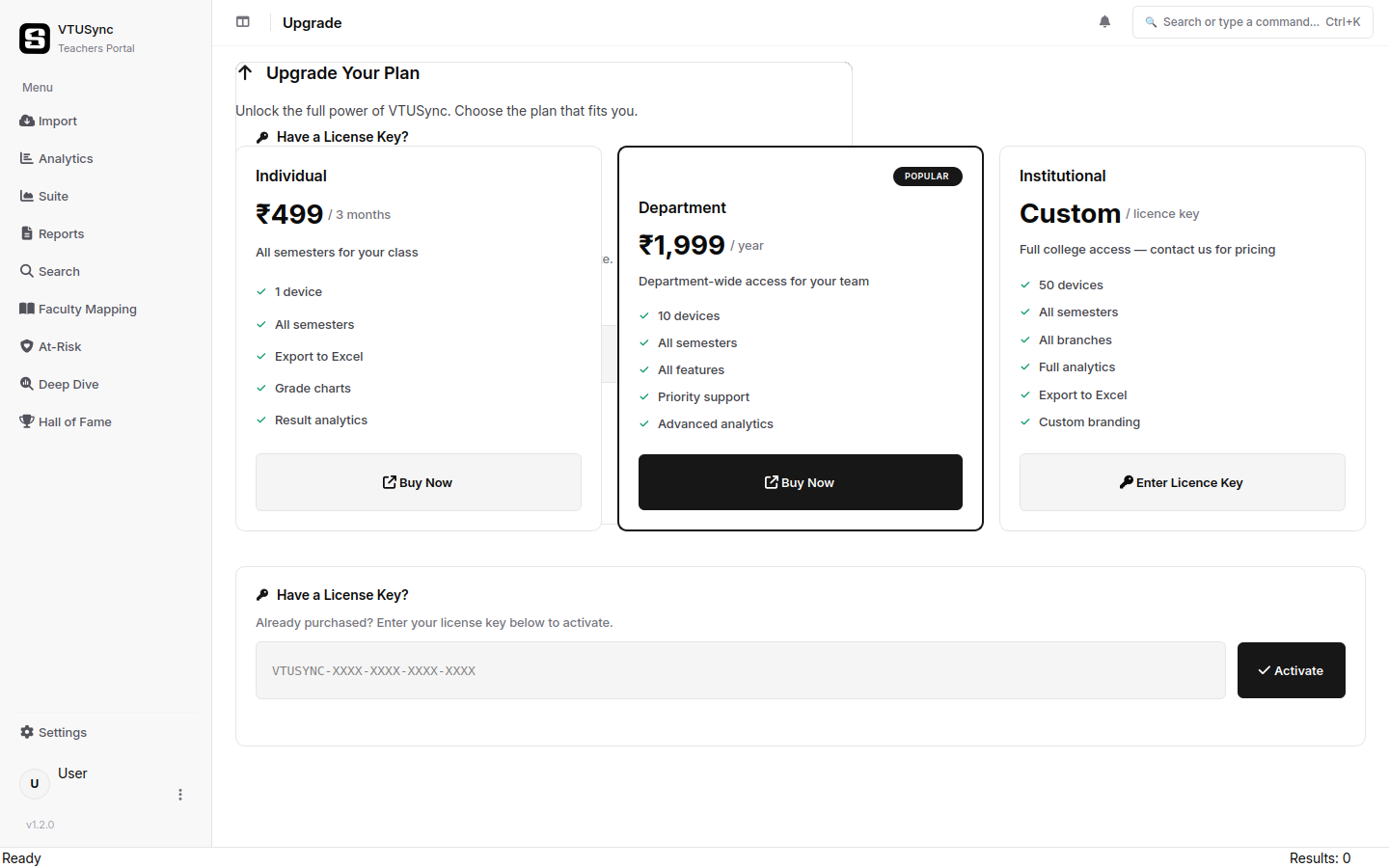
Paid features are unlocked with a license key, which is delivered to your email after your payment is verified.
- Open VTUSync and navigate to the license or activation screen.
- Enter the license key exactly as shown in your email (or paste it in).
- The application will validate the key and unlock your plan's features.
During the 7-day trial, no license key is required. If you lose your key, contact support from the email associated with your account.
3. Fetching Results
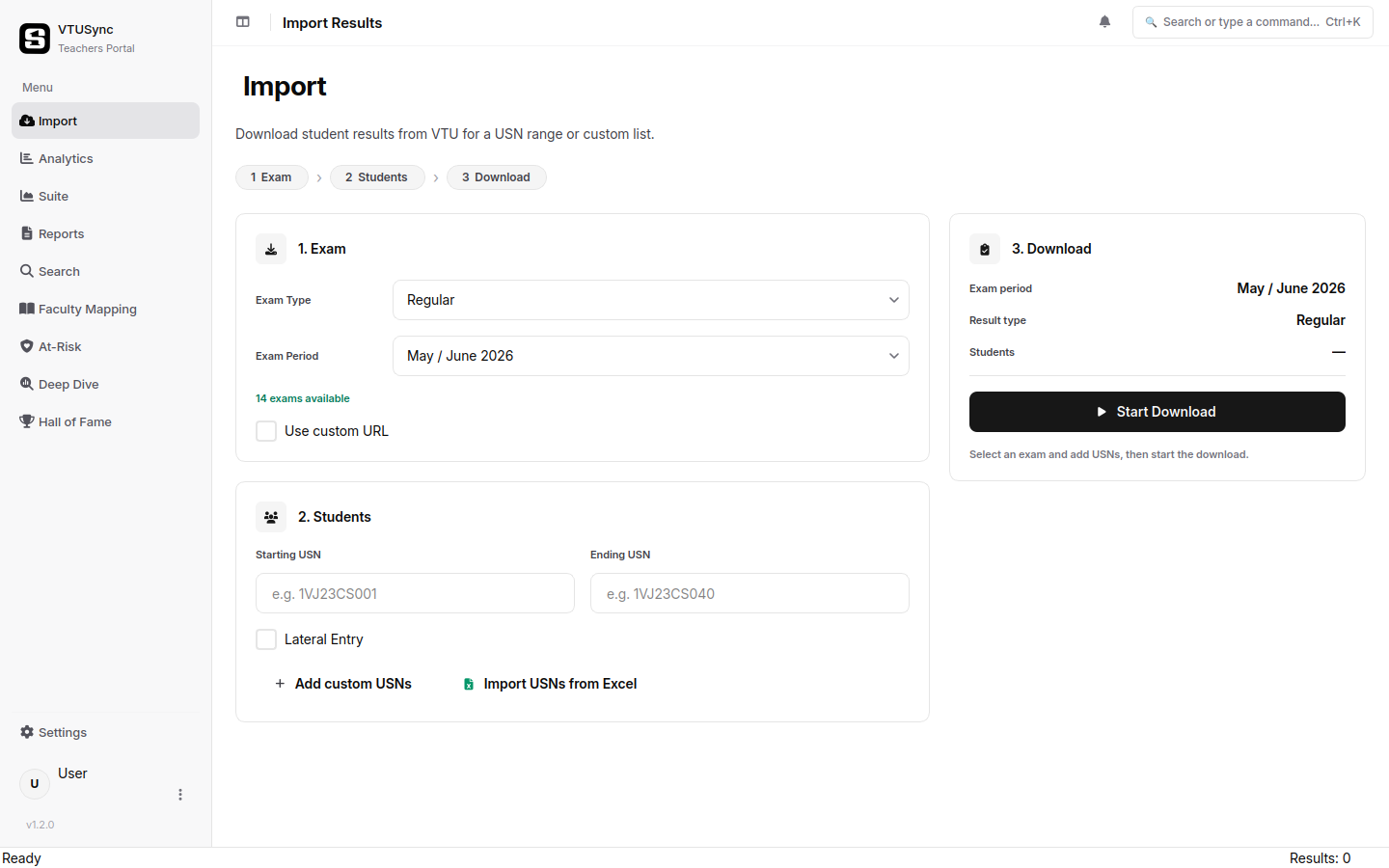
- Select your college, department, and semester — choose the details for the results you want to analyze.
- Fetch — the application retrieves the result data from the VTU portal. This requires an internet connection.
- Review — confirm the fetched details before proceeding.
Once fetched, the result data is stored and processed locally on your device.
4. Analytics
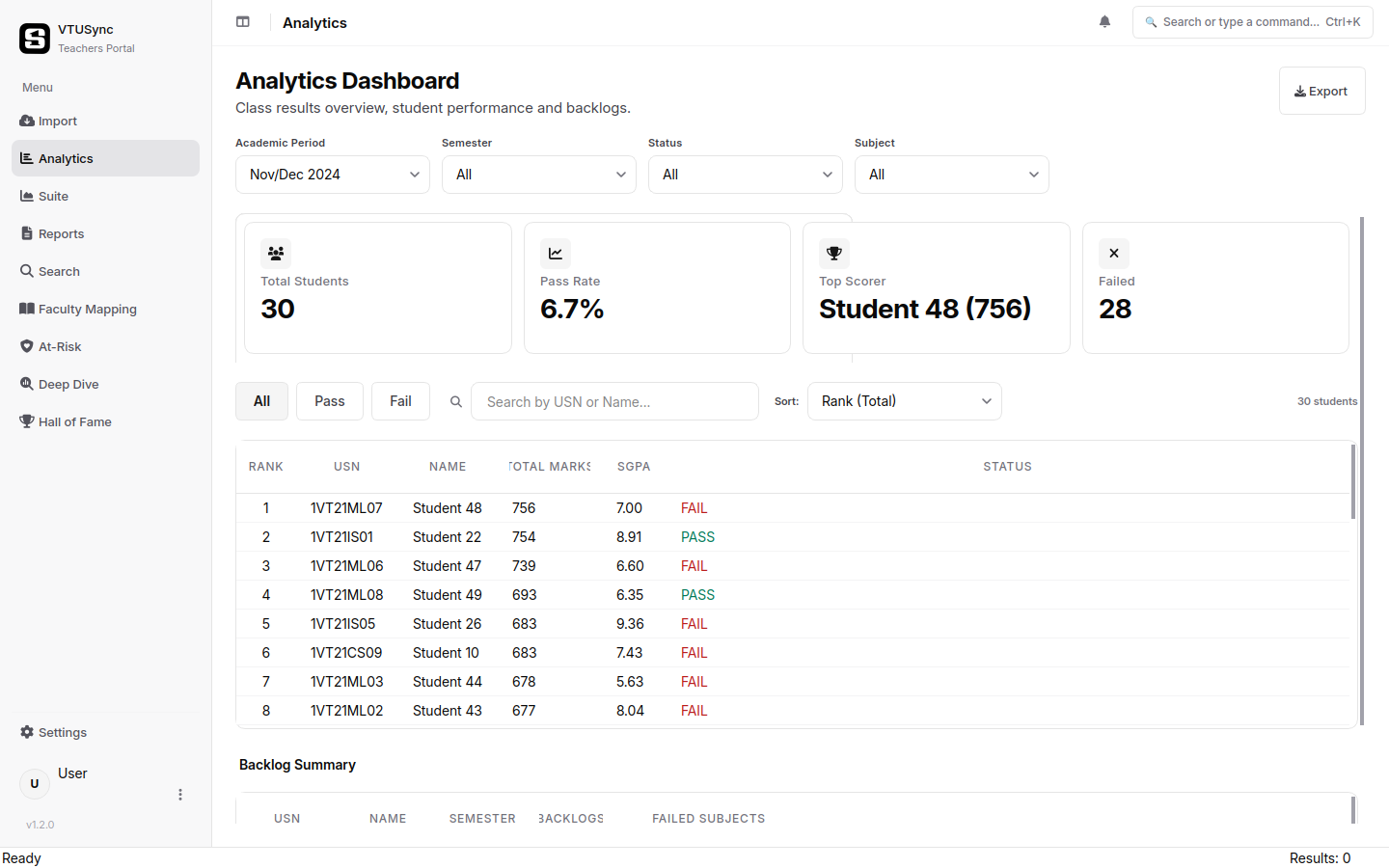
After fetching, VTUSync computes useful statistics for your class:
- Grade distributions and pass/fail summaries.
- Subject-wise and student-wise performance views.
- Remedial and toppers lists.
- Heatmaps and grade charts.
These views help you quickly understand performance and identify students needing attention.
5. Generating Reports
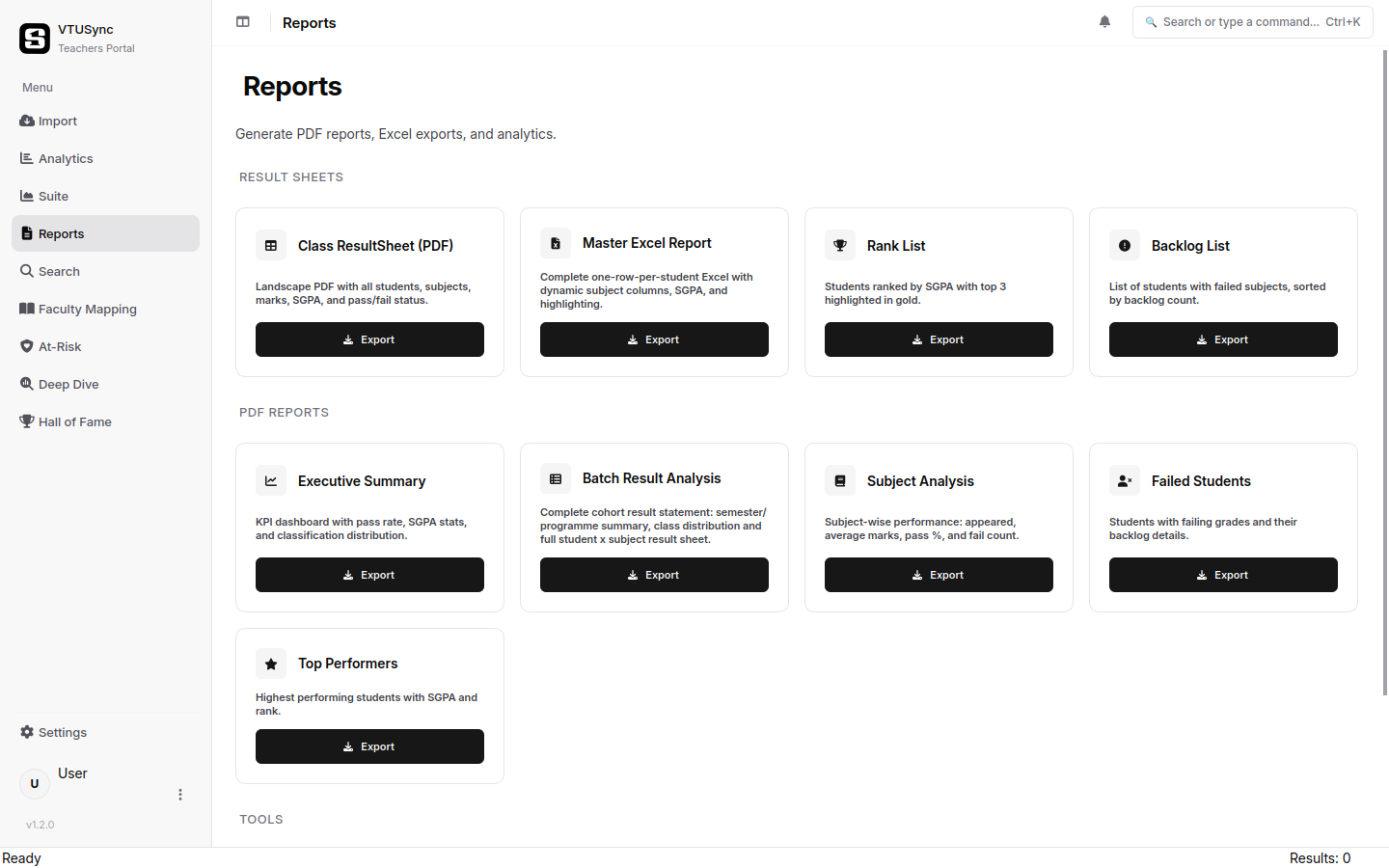
- Choose the report type (PDF or Excel).
- Optional: apply branding so reports include your college's details.
- Generate and export the report to your device, then review it before use.
All report generation happens offline on your machine. We recommend verifying critical information against official records before sharing.
6. Updates
We periodically release updates with improvements and fixes. When an update is available, the application will prompt you. Keeping the Software updated helps ensure compatibility and security.
7. Need Help?
Consult our FAQ, or contact support through our Contact page. For more involved requests, the Support page describes how to get help.
Data stays local
VTUSync processes result data on your device and does not upload your result files or generated reports to any server.